Overview
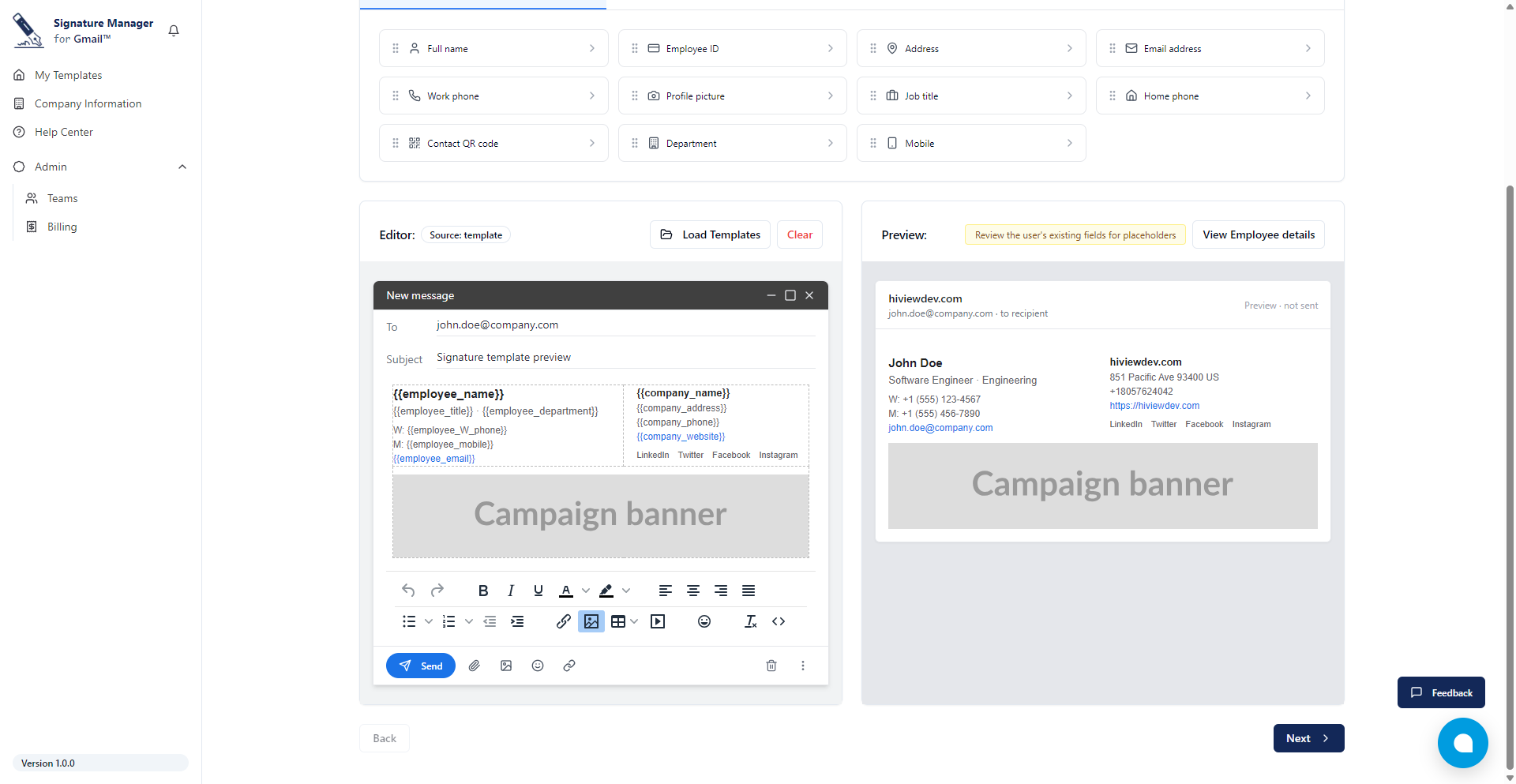
You may want your email signature to use your company’s exact brand font. On websites this is easy, but in email it is very different.
This article explains, in plain language:
-
Why custom fonts in email are limited
-
What works reliably
-
How fonts behave in our signature templates in this app
1. What is a "custom font" in this context?
When we say custom font, we usually mean:
-
A brand font you use on your website or in your marketing (for example, "Acme Sans", "Gotham", etc.)
-
A font that does not come pre‑installed on most computers and phones
By contrast, standard (or "web‑safe") fonts are things like:
-
Arial
-
Times New Roman
-
Verdana
-
Tahoma
-
Georgia
These common fonts are installed on almost every device.
2. Why email is not like a web page
Your website is shown in modern browsers (Chrome, Safari, Edge, etc.).
Your emails are shown inside many different "email clients", for example:
-
Gmail (web and mobile apps)
-
Outlook (desktop, web, and mobile)
-
Apple Mail
-
Older or company‑locked mail apps
Each of these email apps has its own rules about what it allows for security and performance reasons.
Those rules are much more strict than a normal website.
Because of those rules:
-
Many email apps block or ignore custom fonts loaded from the internet
-
Some strip out advanced styling completely
-
Even when something works in one app, it can break or look different in another
3. What Gmail and others actually do with fonts
Here is what happens in the most common cases:
Gmail (web + mobile)
-
Does not download custom fonts from the internet
-
Ignores special font files you might reference in the HTML
-
It only shows:
-
Fonts that are already installed on the recipient’s device
-
Or standard fallback fonts like Arial, Times New Roman, etc.
-
Outlook (especially desktop)
-
Very strict about what styling it respects
-
May ignore or fall back from many custom fonts
-
Behavior can vary between versions and company setups
Apple Mail and some others
-
Support more advanced font options
-
But your recipients will still only see a custom font if their device has it installed
Key takeaway:
Even if we configure your signature to "use your brand font", most recipients will not see it unless that font is already installed on their device. In practice, this is rare.
4. What does work reliably?
To make sure your signatures look consistent for everyone, we use web‑safe font stacks. These are combinations of common fonts, for example:
-
Arial, Helvetica, sans-serif -
"Times New Roman", Times, serif -
Tahoma, Geneva, sans-serif -
Georgia, "Times New Roman", serif
These fonts:
-
Are installed on almost all computers and phones
-
Are supported by major email apps (Gmail, Outlook, Apple Mail, etc.)
-
Give a consistent, professional appearance
When we say a font stack like Arial, Helvetica, sans-serif, it means:
-
Try Arial
-
If not available, try Helvetica
-
Otherwise fall back to a similar generic font (sans‑serif)
This ensures something very close to what you see in our app is what your recipients see too.
5. How this app handles fonts in signatures
When you design a signature in this app:
-
The editor and preview let you choose from a set of email‑safe fonts.
-
The signature is saved with inline font settings, so email clients that support them will honor those choices.
-
If you type in or paste a custom font name:
-
It will be kept in the HTML.
-
It will only show for people who already have that font installed on their device.
-
Everyone else will see the next available fallback font (for example, Arial).
-
We may also show a small notice when you use a non‑standard font, explaining that:
This font may not appear for all recipients and will fall back to a standard font where it is not available.
6. How to keep your branding strong despite font limits
Even with these limitations, you can still have a very on‑brand signature:
-
Use your brand colors generously
Colors are widely supported and help your signature feel like your brand. -
Include your logo as an image
This is the best way to guarantee your logo and brand typography appear exactly as designed. -
Use clean, professional web‑safe fonts
Pick the closest standard font that matches your brand’s look (for example, Arial for a modern sans‑serif, Georgia for a classic serif). -
Highlight key information with layout, not just font
Use spacing, bold text, and alignment to make your name, title, and contact information stand out.
7. Frequently asked questions
Can I upload my own font file (for example, .ttf, .otf) so everyone sees it?
Short answer: No.
Email apps like Gmail and Outlook do not reliably load these files. Even if we added them to the signature, most recipients’ email apps would ignore them.
My website uses a special brand font. Why cannot my emails look exactly the same?
Websites and emails are rendered in very different environments.
-
Browsers are flexible and can load fonts from your server.
-
Email apps are intentionally restrictive. To protect users, they often block or strip the advanced features that websites rely on.
So your email signature must work within the limitations of each email client, not just one browser.
Sometimes my signature looks slightly different in Gmail versus Outlook. Is that normal?
Yes, that is normal.
Each email app uses its own text rendering engine and has its own rules, so minor differences in spacing, line height, or font appearance are normal and unavoidable.
Will this change in the future?
Email standards evolve slowly. If major email providers start to reliably support custom web fonts in a safe way, we will revisit this and may be able to expand what is possible.
For now, we prioritize reliable, consistent delivery over features that only work for a small number of recipients.
8. Summary
-
You cannot reliably force a custom brand font in email signatures across Gmail, Outlook, and other clients.
-
Standard web‑safe fonts are the only way to ensure your signature looks good for everyone.
-
This app:
-
Uses email‑safe font options by default.
-
Preserves advanced font settings where possible.
-
Falls back gracefully so your signature always looks professional.
-
-
For brand‑critical typography (like your logo), images plus consistent colors are the most dependable solution.
If you need help choosing the best font stack for your brand, or want guidance on turning a brand header into an image for your signature, please contact our support team.